Your simple guide to running the shop with LPOS
No tech experience needed. If you can send a text message, you can use LPOS. This guide walks you through everything in plain language, one small step at a time — from opening the app the first day to taking orders, getting paid, and checking how the shop is doing.
Don't worry about making mistakes
LPOS keeps everything on your tablet and works even with no internet. Nothing is shared online unless you turn that on yourself. Take your time and explore — you won't break anything.
📱
An Android tablet
A phone works too
🧺
Your price list
What you charge per kilo or load
🖨️
A receipt printer
Optional — you can start without one
What's in this guide
Steps 1–5 are a one-time setup. After that, you'll mostly use steps 6 and 7 every day. Jump to Common questions at the end if you get stuck.
Open the app and sign in
The very first time, LPOS gives you an owner account so you can get started right away.
- Tap the LPOS icon on your tablet to open it.
- On the sign-in screen, type the username
adminand the PIN1234. - Tap Sign In. That's it — you're in.
Good to know: along the bottom you'll see five buttons — Receive, Release, Inventory, Reports, and More. These are the main parts of the app. Tap around to explore.
Set your own secret PIN
The starting PIN (1234) is easy to guess, so change it to your own private numbers. Think of it like the PIN on your ATM card.
- Tap More (bottom-right corner).
- Tap Change PIN.
- Type the old PIN (
1234), then your new 4–6 digit PIN twice. Tap the little eye icon if you want to see what you typed. - Tap Update PIN.
💡 Pick numbers you'll remember but others can't guess. Avoid 1234 or your birthday.
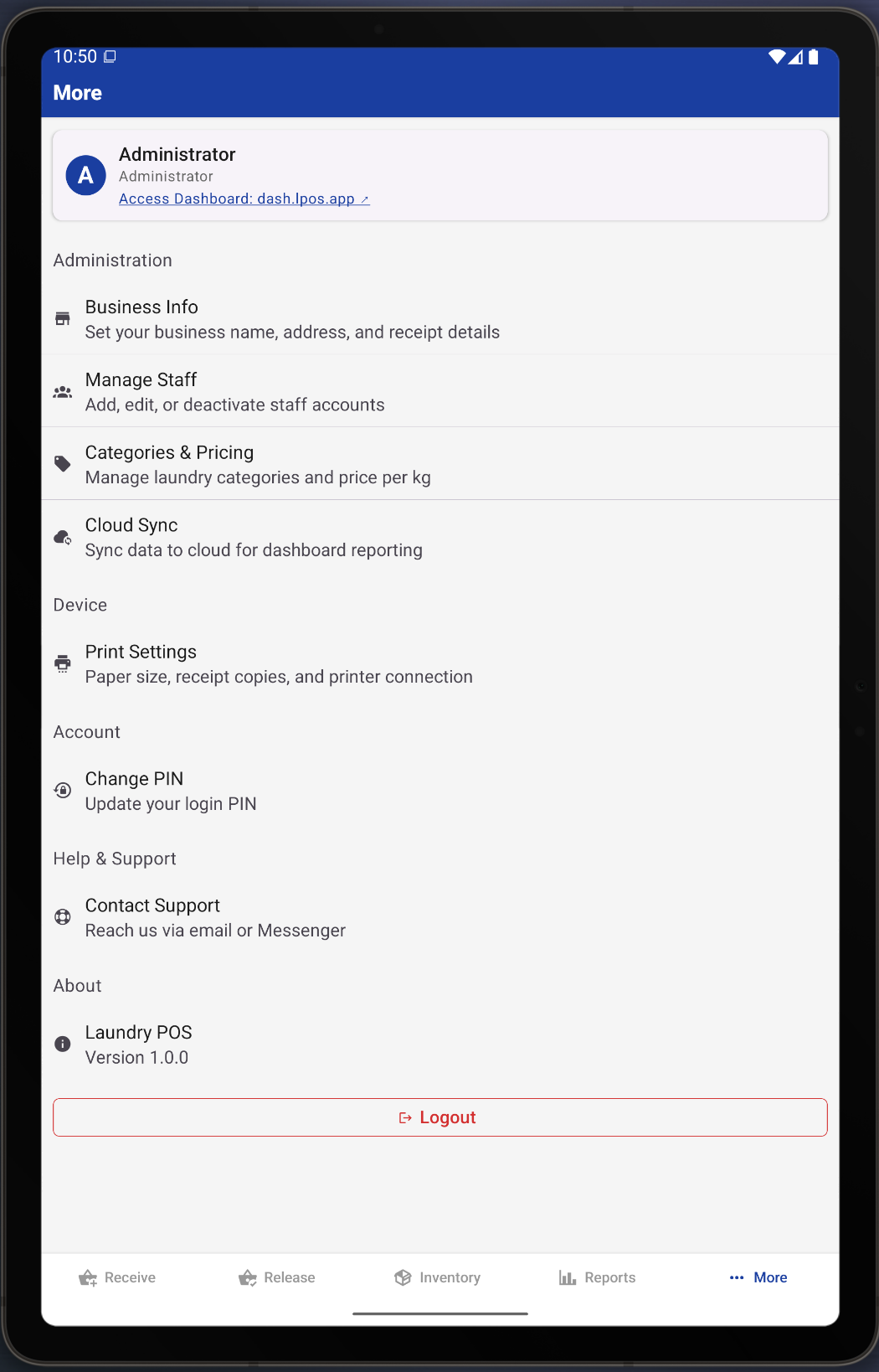
Add your shop's name
Your shop name appears on the sign-in screen and prints on every customer receipt, so it looks professional.
- Tap More, then Administration, then Business Info.
- Type your shop name — for example, Fresh & Clean Laundry.
- Add your address and phone number if you'd like them on receipts.
- You can change the little thank-you message that prints at the bottom of receipts.
- Tap Save.
Set your services and prices
Tell LPOS what you offer and what you charge. It comes with common laundry services already filled in — you just adjust the prices to match your shop.
- Tap More → Administration → Categories & Pricing.
- You'll see services like Regular Clothes and Bedding / Linens already there.
- To change a price, tap the pencil icon next to a service, type your price, and choose how you charge for it:
- Per kilo — you weigh the clothes (for example ₱70 per kg).
- Per load — a flat price for one washer or dryer load.
- Per pack / per piece — a fixed price for each item, like a comforter.
- Tap Save. To add a brand-new service, tap the + Add Category button.
💡 Not sure? Just set the two or three services you use most. You can always add more later.
Add your helpers (staff)
Give each person who works the counter their own login. That way the app can show who took in and handed back each order — handy for keeping track of the day.
- Tap More → Administration → Manage Staff.
- Tap the + button to add a person.
- Type their name, a username, and a PIN for them.
- Choose their role:
- Staff — can take orders and hand out laundry. Best for most helpers.
- Admin — can also change prices, see reports, and manage supplies. This is the owner/manager role.
- Tap Create.
To switch to a different person during the day, tap the name in the top-right corner and enter that person's PIN.
Take a customer's laundry
This is the main thing you'll do all day. When a customer drops off laundry, you make an order for them.
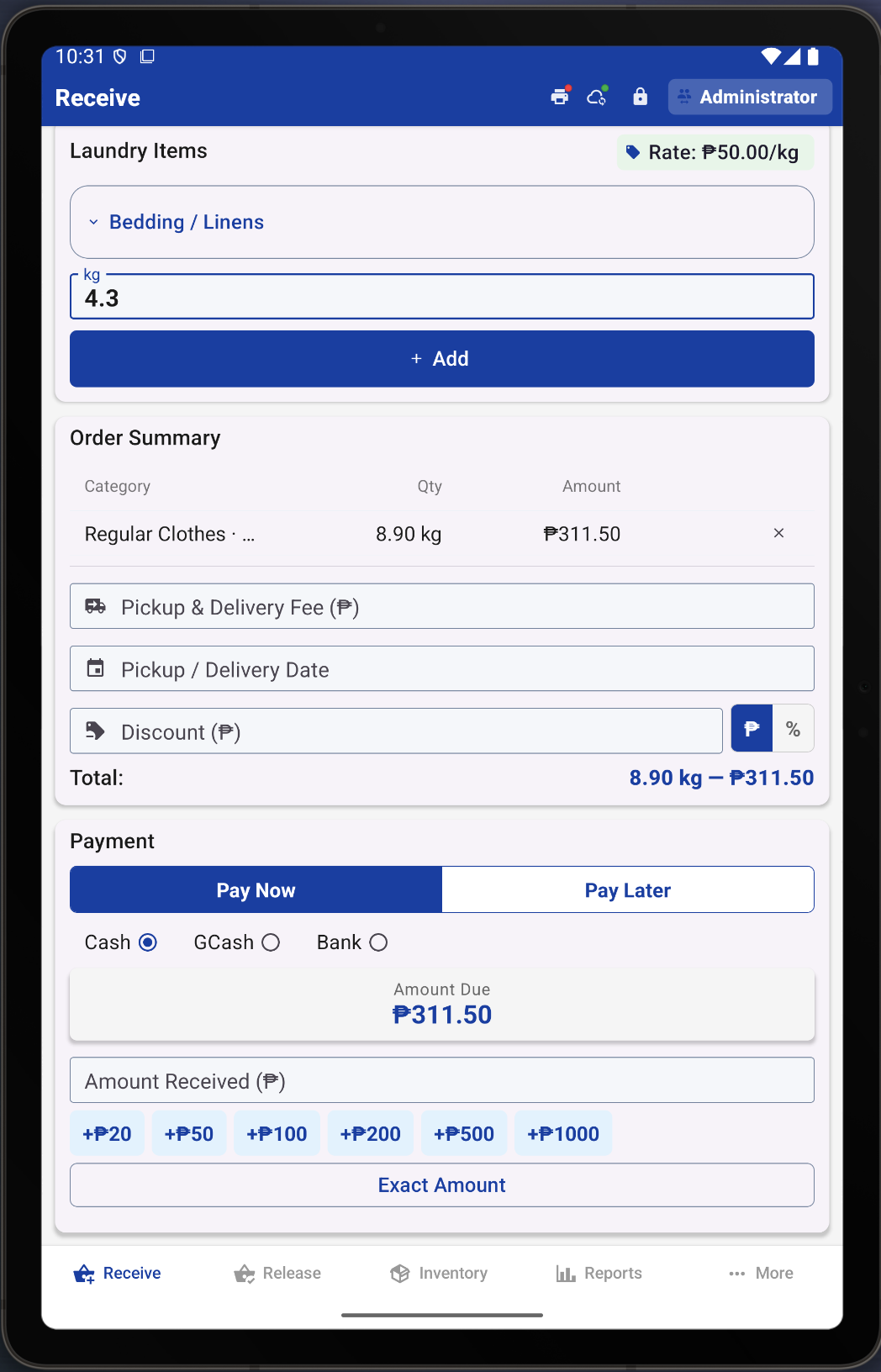
- Tap the Receive tab.
- Type the customer's name. If they've been in before, LPOS remembers them — just start typing and tap their name.
- Choose the service (like Regular Clothes), enter the weight or count, and tap Add. Repeat if they have more than one kind of item.
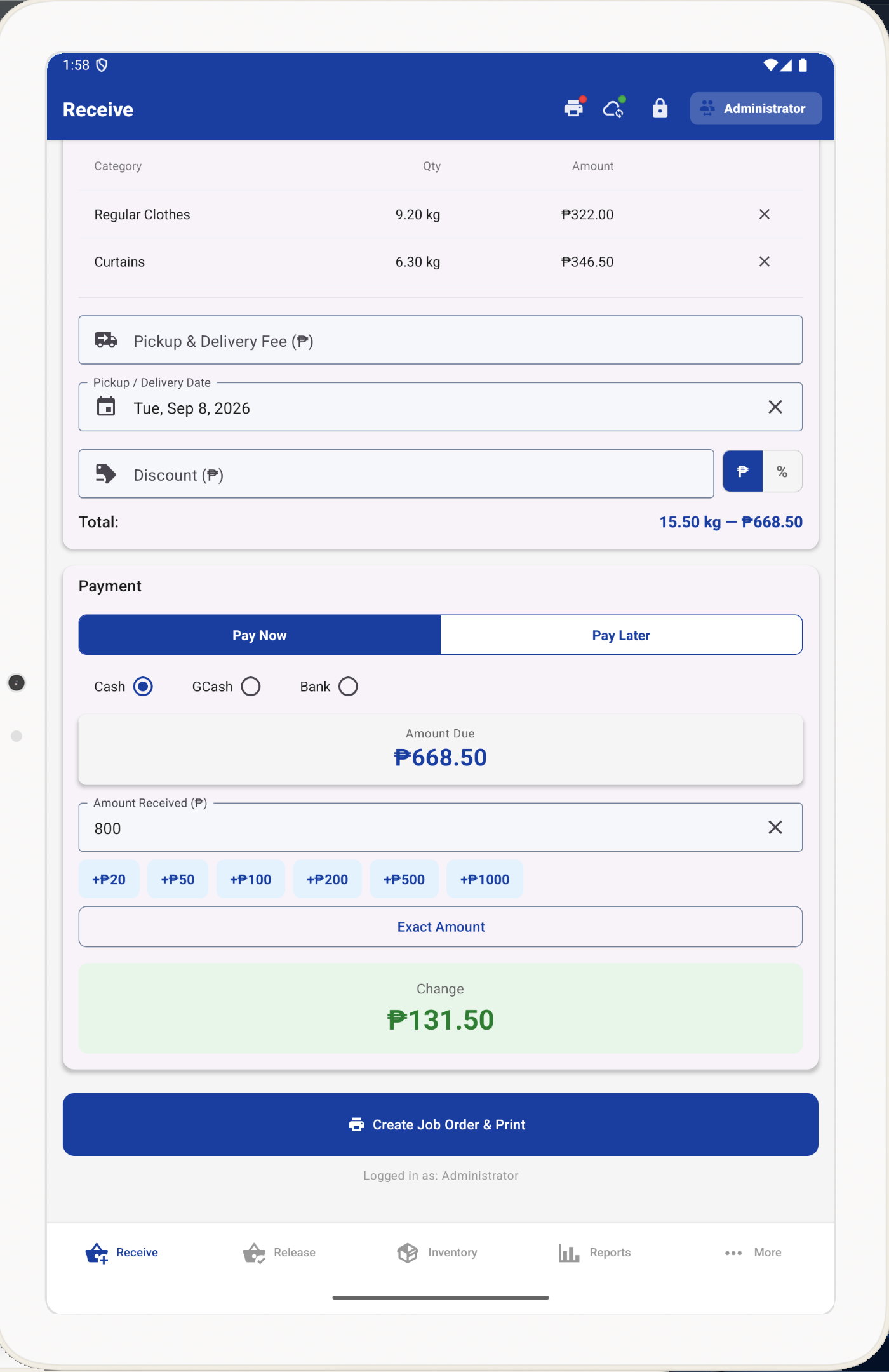
- Add a delivery fee or a discount if needed. The total updates by itself as you go.
- Under Payment, choose Pay Now or Pay Later, and how they're paying (Cash, GCash, or Bank).
- For cash, type the amount they hand you — LPOS shows the change to give back automatically.
- Tap Create Job Order & Print. Done!
🧾 Each order gets a JO number (job order number). Tell the customer this number, or hand them the printed slip, so it's easy to find their laundry later.
Pack it and hand it back
When the laundry is done and the customer comes to collect, this is where you find their order and hand it over.
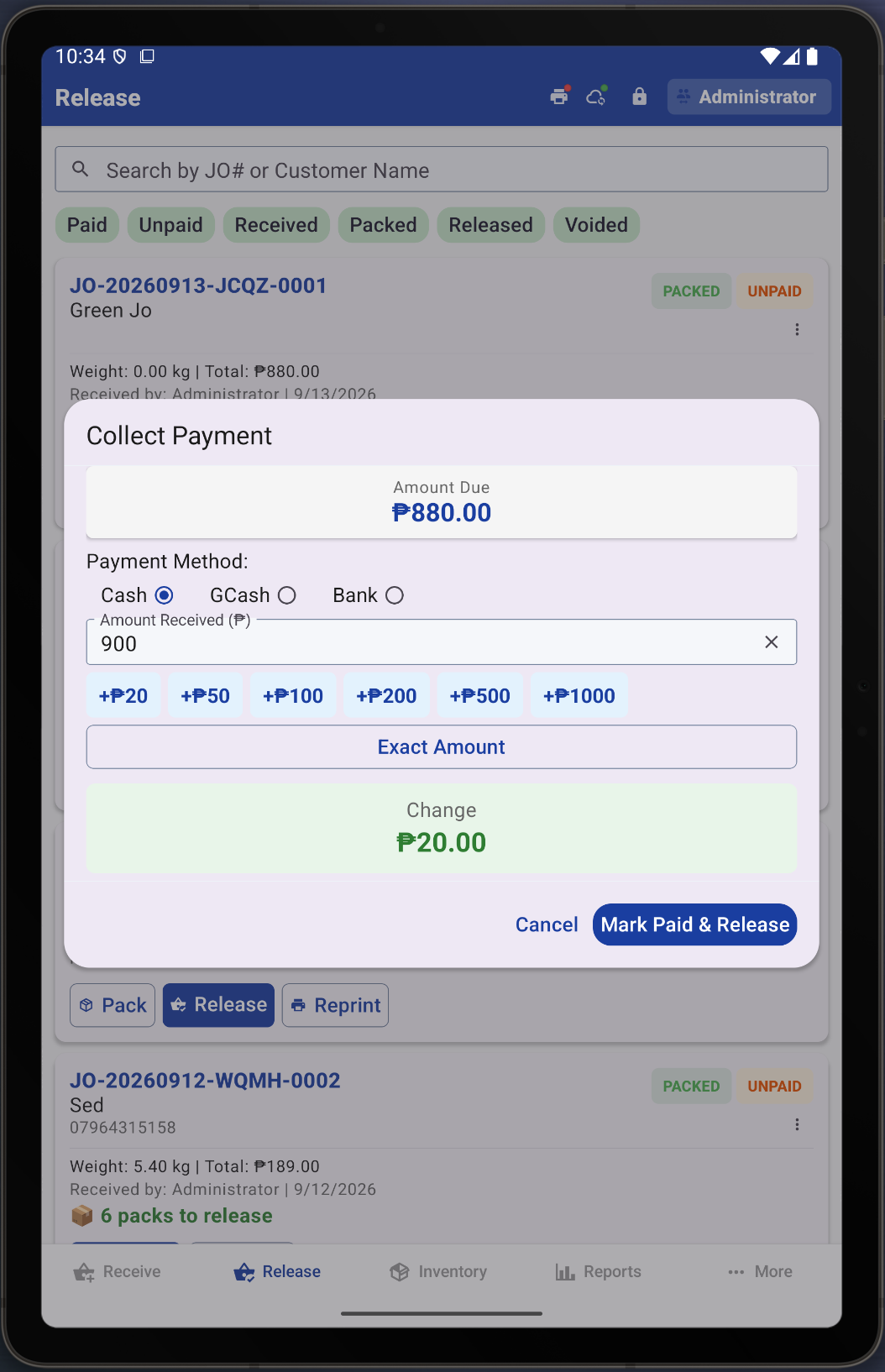
- Tap the Release tab. You'll see a list of orders with coloured labels telling you their stage.
- Find the order using the search box (type the JO number or customer name).
- When laundry is folded and bagged, tap Pack and enter how many bags there are.
- When the customer collects, tap Release. If they haven't paid yet, LPOS asks you to collect payment first.
The three stages, in plain words:
- 🟡 Received — you've taken the laundry in.
- 🔵 Packed — it's washed, folded, and bagged, ready to collect.
- 🟢 Released — the customer has picked it up. All done.
See how the shop is doing
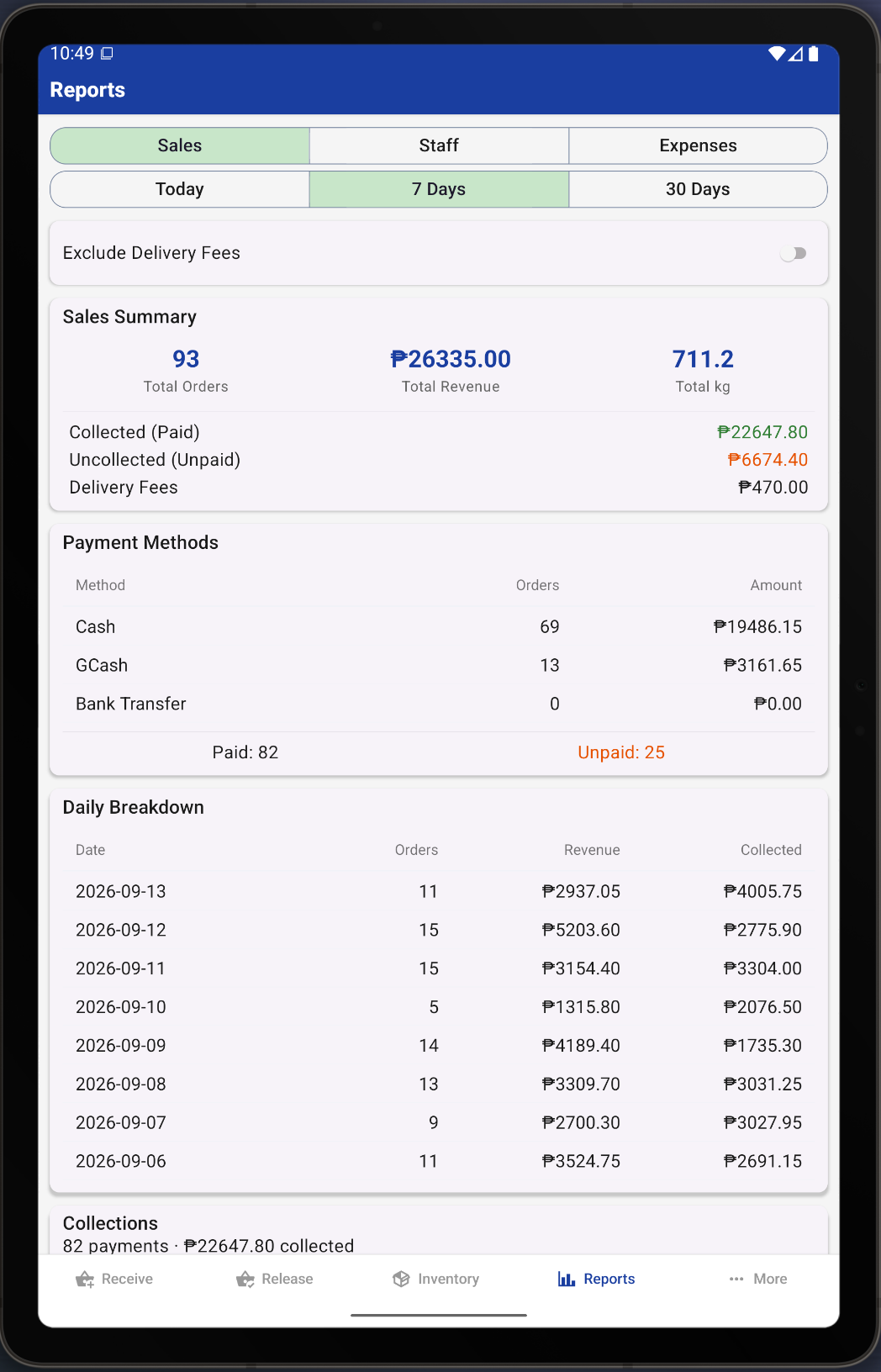
No calculator, no notebook. The Reports tab shows your sales and cash at a glance.
- Tap the Reports tab.
- Choose a time period: Today, 7 Days, or 30 Days.
- See how many orders you took, how much you earned, how much cash you've actually collected, and how much is still owed.
💡 A quick look each night tells you exactly how the day went.
Keep an eye on supplies
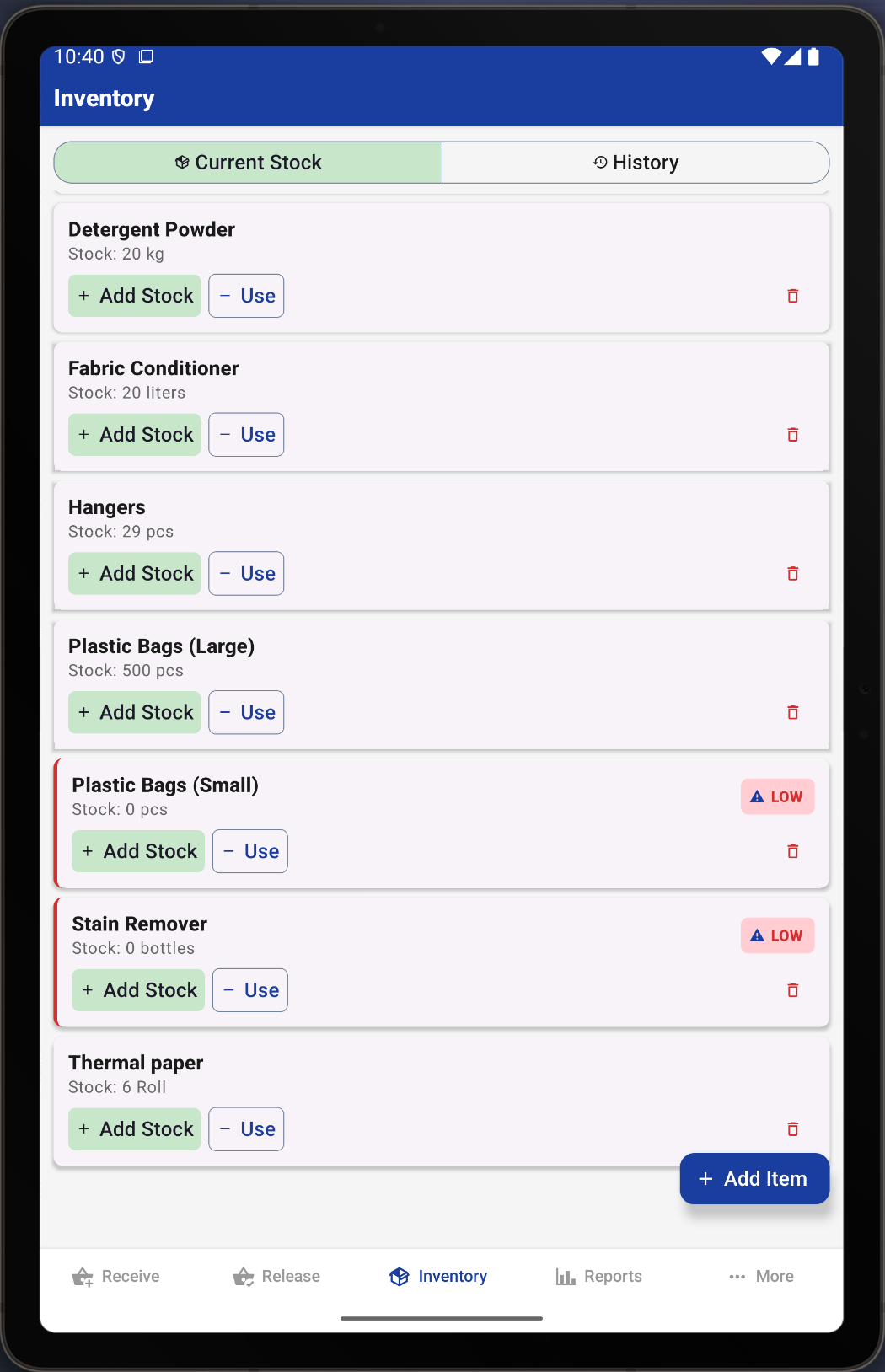
Never run out of detergent mid-day again. The Inventory tab tracks your supplies and warns you when something is running low. (This is an owner/admin feature.)
- Tap the Inventory tab.
- When you buy more detergent or bags, tap Add Stock and enter how much you bought and the cost.
- A red LOW label appears next to anything that's running low, so you know to restock.
🖨️
Connect a receipt printer
If you have a small Bluetooth receipt printer (the common 58mm or 80mm kind), you can print slips for customers. Go to More → Print Settings, connect your printer, and you're set. No printer? No problem — the app works perfectly without one.
☁️
Turn on online backup (Pro)
This is off unless you switch it on. When enabled, it safely backs up your data online, so if your tablet is ever lost or broken, you can get everything back on a new one. It also lets you check your shop from any phone or computer. Find it under More → Administration → Cloud Sync.
Common questions
What if the internet goes down or there's a brownout? +
LPOS keeps working. Everything is saved right on your tablet, so you can keep taking orders and printing receipts with no internet at all. Just keep the tablet charged.
I made a mistake on an order. Can I fix it? +
Yes. An owner (Admin) can cancel an incorrect order using the ⋮ menu next to it on the Release tab and choosing Void. Cancelled orders don't count toward your sales, so your numbers stay correct.
Is my customer and sales information safe? +
Your data stays on your own tablet and is never shared online unless you choose to turn on backup. There are no ads and no trackers. See our Privacy Policy for details.
I forgot my PIN. What do I do? +
An owner (Admin) can reset a staff member's PIN under More → Administration → Manage Staff. If you're the owner and you're locked out, contact us and we'll help you get back in.
Still stuck? We're here to help.
Tell us which screen you're on and what you were trying to do. A screenshot helps us help you faster.
LPOS — Laundry POS for Philippine businesses. Read our Privacy Policy or go back to the home page.